
AppLovin
AppLovin unity guide for Custom Adapter GMA SDK.
App Prerequisites
- Ensure Google Mobile Ads SDK is already integrated; if not, install it before adding the TapMinds adapter.
Installation
Configuration Steps
Adding Dependency
- Open Unity Editor.
- Go to Window → Package Manager.
- Click the “+” (Add) button in the top-left corner.
- Select Install package from Git URL…
- Paste the following Git URL and click Install:
-
https://github.com/tapmind-tech/TapMind-CA-Applovin-Unity.git
-
- Wait for the package to finish installing successfully.
- Once installed, the TapMind Unity SDK will be available in your Unity project and ready for integration.
Import the Mobile Ads for Unity plugin
- Download the latest
.unitypackagerelease from GitHub. - Import the
.unitypackagefile by selecting the Unity menu option Assets > Import package > Custom Package and importing all items.
Set your AdMob app ID
In the Unity editor, select Assets > Google Mobile Ads > Settings from the menu.
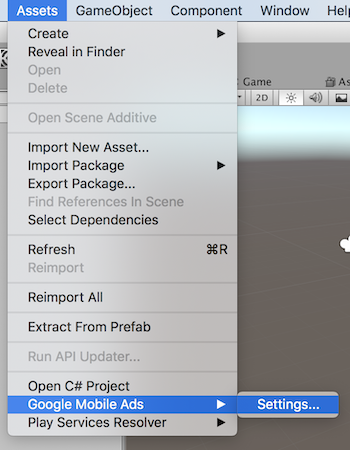
Enter your Android and iOS AdMob app ID in each field.

Configuration
Platform-specific values The steps below apply to both Android and iOS. When copying adapter class names or platform-specific parameters, use the Android or iOS tab for your build target.
PREREQUISITES
- An Ad Unit must already be in place which will be used for targeting.
APPLOVIN CONFIGURATION
Please go through the below steps to integrate TapMinds as a demand partner with your APPLOVIN account. To begin with the integration, login to your APPLOVIN account and follow the below steps.
- In the MAX Dashboard, select MAX > Mediation > Manage > Networks.
- Click on Click here to add a Custom Network at the bottom of the page. The Create Custom Network page appears.
Custom Network: TapMind Market Place
Android Class: com.tapmind.tech.TapMindMediationAdapterApplovin
- Click on Save.
MAX → Mediation → Manage → Networks → Click Add Custom Network → Select Network Type (SDK) → Enter Class Name (Android or iOS) → Save
ADDING YIELD PARTNER
- Open MAX > Mediation > Manage > Ad Units in the MAX dashboard.
- Select the Ad Unit of type(Banner, Interstital or Rewarded) to which you want to add TapMind as a custom adapter.
- Select TapMind from the custom network menu to enable and enter the information for each placement. Below are the test setup details
Contact your account manager to see what values you need to set for the final list of production setup (Placement ID, Custom Parameters and CPM Price).
App ID = Leave it blank (its optional)
Placement ID = "As Per the G-sheet Provided"
eCPM: As Per the G-sheet Provided
Custom Parameters = {"placementName":"As Per the G-sheet Provided"}
- Click on “Save” and save the configuration.
MAX → Mediation → Manage Ad Units → Select Ad Unit → Select TapMind → Enter Placement ID → Enter eCPM → Enter Custom Parameters → Save
Response can be checked in LOGCAT by using tag: TapMindAdapter
The above setup completes our TapMind x Applovin integration. You should see an Ad if test setup is complete and working fine.