
Unity LevelPlay
Unity LevelPlay unity guide for Custom Adapter (GMA SDK).
Prerequisites
Performed by: Developer
- See the Compatibility Matrix for the minimum Android and iOS versions for this package.
- The GMA Unity plugin must be imported and AdMob app IDs set under Assets → Google Mobile Ads → Settings
Install the SDK
Performed by: Developer
In Unity Package Manager → Add package from git URL:
https://github.com/tapmind-tech/TapMind-CA-Ironsource-Unity.git
TapMind's Unity package uses a post-processing script that automatically adds the native Android and iOS dependencies during the Unity build. Git tag-based pinning is not used - add the package from the repository URL above.
Import the GMA Unity plugin and set AdMob app IDs under Assets → Google Mobile Ads → Settings.
Configure Unity LevelPlay
Performed by: Ad ops
Create the TapMind network: Monetize → Setup → SDK Networks → Available Networks → Manage Networks → select Custom Adapter → enter network key 15c11cb1d → Enter → Save. The network appears as TapMind.
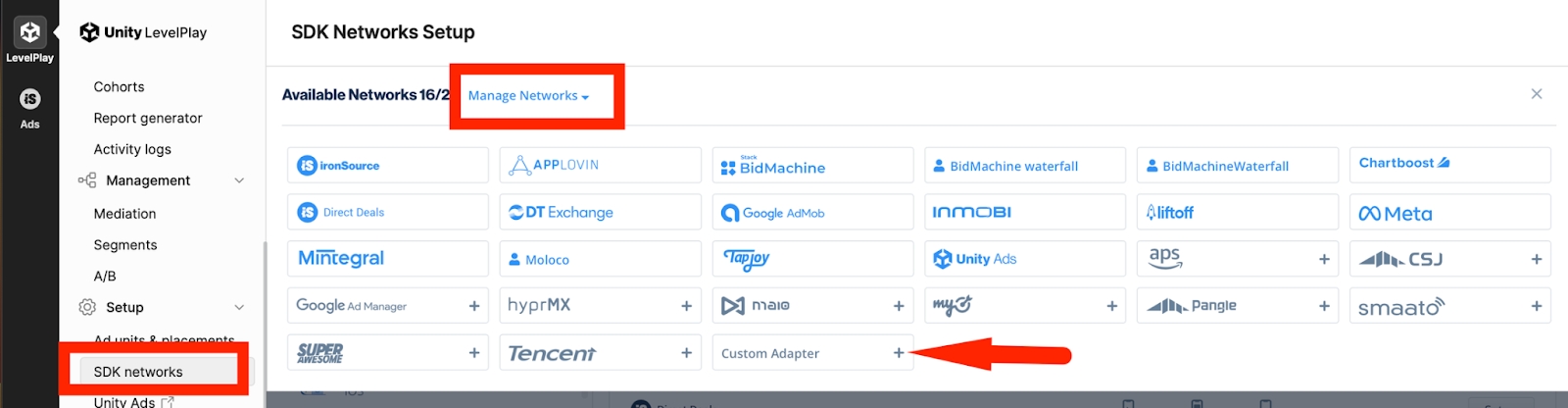
Set up instances: Setup → Instances → select TapMind Marketplace → Add ad instance → select ad type →
Instance name : provided by your account manager
placementCODE : provided by your account manager
Mediation Group: Select your target mediation group
Rate : provided by your account manager
Note: Enter the rate for each placement - it determines waterfall order. Add one instance per ad format to start.
Verify integration
Performed by: Developer
After install and dashboard configuration:
- Run your app in a debug build. TapMind's test mode is enabled automatically in debug builds and serves test ads at a high fill rate.
- Request an ad through your mediation SDK as you normally would.
- Confirm a TapMind ad fills. Check logs for the tag
TapMindAdapter. - When verified, build in release mode for production - test mode is disabled automatically in release builds, and live ads serve.
Note: Test mode is automatic. It follows your build type: debug = test ads, release = live ads. There is no flag to enable or disable, and nothing to turn off before going live.
Release build QA: There is currently no documented release-safe test path to validate R8/ProGuard without serving live ads. Consumer ProGuard rules from the TapMind AAR are applied automatically when you integrate the published adapter packages.
Troubleshooting
Performed by: Developer
Before diving into logs, confirm adapter class names and the LevelPlay network key against the Class & Network Key Registry, and placementName and eCPM/rate with your account manager.
See Troubleshooting for common symptoms, mediation-specific fixes, release vs debug guidance, and escalation steps. Partner-specific verification steps are under Verify integration above.