---
description: >-
Cocos iOS integration guide for TapMind Custom Adapter across AdMob and Google Ad Manager.
---
> **For AI agents:** the complete documentation index is at [llms.txt](/llms.txt). Append `.md` to any page URL for its markdown version.
import DocTagAdmobGam from '/snippets/doc-tag-admob-gam.mdx'
# Cocos iOS Integration Guide
## AdMob
**PREREQUISITES**
* An Ad Unit must already be in place which will be used for targeting.
### Installation
**App Prerequisite**
* minSdkVersion of 26 or higher
* compileSdkVersion of 36 or higher
##### Install Extension
1. Open your Cocos project
2. Go to the top menu: **Extension → Extension Manager**
3. Click on: **"Install from File"**

4. Select and upload the TapMind extension ZIP file\
[Download TapMind Extension](https://github.com/tapmind-tech/TapMind-CA-Admob-Cocos/archive/refs/heads/main.zip)
##### Enable Extension (if it is disabled)
5. After installation, go to the **Installed** tab
6. Locate the **TapMind extension**
7. **Enable** it
**Extension → Extension Manager → Install from File → Select TapMind Extension ZIP → Install → Installed Tab → Enable Extension**
### Configuration
**CREATING CUSTOM EVENTS FOR WATERFALL**
1. Under the **Mediation** tab : Click on **Create Mediation group** section
2. Select **IOS** and type of Ad format and Continue
3. In the Name field : Type in as provided in the **G-sheet**
4. Click on **Add ad units**
5. Select the app and the Ad units that you want to use custom targeting on.
**Add Custom Event** → **Create Mediation Group** → **Select IOS** → **Add Name** → **Add Ad units** → **Select app and Ad units**
**AD SOURCES (WATERFALL SECTION)**
1. Click on Water fall source
2. Click on Setup ad Source and then at the Bottom left Click on custom event
3. Select the App for the setup (IOS)
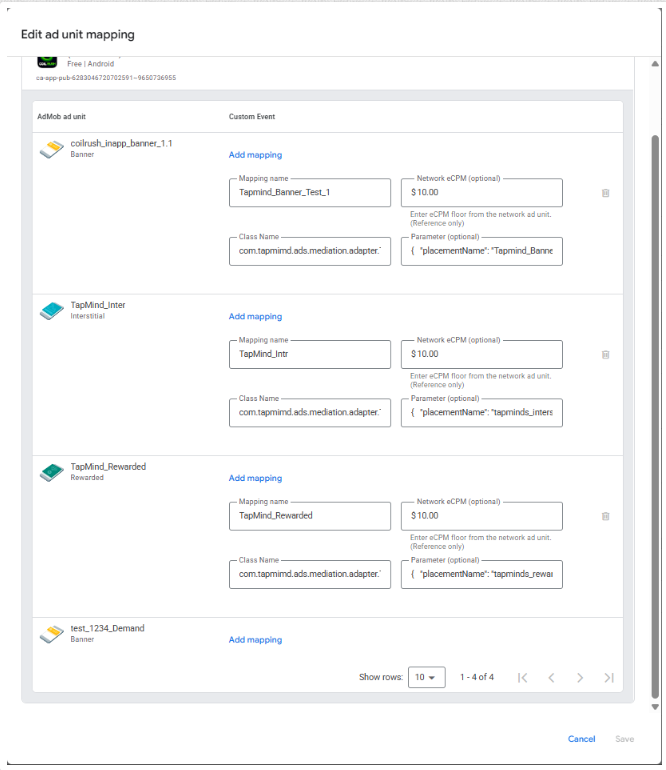
4. Select ad unit and add the parameters as follows
For the Below details Please reach out TapMind Account Manger
```
Mapping name : As Per the G-sheet Provided
ecpm : As Per the G-sheet Provided
Class : TapMindMediationAdapterAdmob
Parameter : { "placementName": "As Per the G-sheet Provided"}
```
**Ad Sources → Add Custom Event → Enter Label → Set eCPM → Add Mapping → Enter Mapping Name → Enter Class Name → Add Parameter**
The above setup completes our **TapMind x ADMOB** integration. You should see an Ad if test setup is complete and working fine.
Official Google Documentation for creating a custom event : [https://support.google.com/admob/answer/13407144](https://support.google.com/admob/answer/13407144)
## Google Ad Manager
**PREREQUISITES**
* An Ad Unit must already be in place which will be used for targeting.
**GOOGLE AD MANAGER CONFIGURATION**
Please go through the below steps to integrate **TapMind** as a demand partner with your **GAM** account. To begin with the integration, login to your **GAM** account and follow the below steps.
1. Under the **Admin** header : Click on the **Companies** section
2. Click on the **New Company** button : Select **Ad Network**
3. In the Name field : Type In **TapMind**
4. In the **Ad Network** field : Select **Other Company**
5. Toggle **Mediation** to **ON**
6. Click on **Save**
### Installation
**App Prerequisite**
* minSdkVersion of 26 or higher
* compileSdkVersion of 36 or higher
##### Install Extension
1. Open your Cocos project
2. Go to the top menu: **Extension → Extension Manager**
3. Click on: **"Install from File"**

4. Select and upload the TapMind extension ZIP file\
[Download TapMind Extension](https://github.com/tapmind-tech/TapMind-CA-Admob-Cocos/archive/refs/heads/main.zip)
##### Enable Extension (if it is disabled)
5. After installation, go to the **Installed** tab
6. Locate the **TapMind extension**
7. **Enable** it
**Extension → Extension Manager → Install from File → Select TapMind Extension ZIP → Install → Installed Tab → Enable Extension**
### Configuration
* An Ad Unit must already be in place which will be used for targeting.
**GOOGLE AD MANAGER CONFIGURATION**
Please go through the below steps to integrate **TapMind** as a demand partner with your **GAM** account. To begin with the integration, login to your **GAM** account and follow the below steps.
1. Under the **Admin** header : Click on the **Companies** section
2. Click on the **New Company** button : Select **Ad Network**
3. In the Name field : Type In **TapMind**
4. In the **Ad Network** field : Select **Other Company**
5. Toggle **Mediation** to **ON**
6. Click on **Save**
**Login GAM → Admin → Companies → New Company → Select Company Type (Ad Network) → Enter Name (TapMind) → Select Ad Network (Other Company) → Enable Mediation → Save**
**CREATING YIELD GROUP AND YIELD PARTNER**
For adding **TapMind** under existing yield groups, skip the steps for creating a new yield group, navigate to your existing yield group and follow the steps for **Adding Yield Partner** as described in the next section
1. Under the “**Delivery**” tab : Click on “**Yield Groups**” section
2. Click on “**New Yield Group**” to create a new yield group
3. In the Name field : Type in as provided in the **G-sheet**
4. Ad Format : As Per the G-sheet Provided
5. Inventory Type : **Mobile**
6. Under Targeting : Select the Ad Units which "**TapMind**" will target
7. Scroll to the bottom
**Delivery → Yield Groups → New Yield Group → Enter Name (from sheet) → Select Ad Format → Select Inventory Type (Mobile) → Select Ad Units (TapMind) → Scroll Down**
**ADDING YIELD PARTNER**
1. Click on “**Add Yield Partner**”
2. Select “**TapMind**” from the list
Add details as provided below in Yield Partner
```
Integration Type : Custom Event
Platform : IOS
Status : Active
```
For the Below details Please reach out TapMind Account Manger
```
Default Cpm : As Per the G-sheet Provided
Label : As Per the G-sheet Provided
Class Name : TapMindMediationAdapterAdmob
Parameter : { "placementName": "As Per the G-sheet Provided"}
```
3. Click on “**Save**” and save the configuration.
4. The actual number of entries, manual eCPM, etc. will be shared once the test setup is complete.
The above setup completes our **TapMind x GAM** integration. You should see an Ad if test setup is complete and working fine.
**Add Yield Partner → Select TapMind → Integration Type (Custom Event) → Platform (IOS) → Set Status (Active) → Enter Default CPM (from sheet) → Enable Override CPM → Enter Label (from sheet) → Enter Class Name → Enter Parameter → Save**
Official Google Documentation for creating a Yield Group :
\
https://support.google.com/admanager/answer/7390828?hl=en