---
title: IronSource LevelPlay
description: >-
IronSource LevelPlay Android guide for Custom Adapter GMA SDK.
---
> **For AI agents:** the complete documentation index is at [llms.txt](/llms.txt). Append `.md` to any page URL for its markdown version.
import DocTagIronsource from '/snippets/doc-tag-ironsource.mdx'
**App Prerequisites**
* minSdkVersion of 23 or higher
* compileSdkVersion of 36 or higher
## Installation
#### Configuration Steps
Ensure your `android/build.gradle` (project-level) includes the required repositories:
```
allprojects {
repositories {
google()
mavenCentral()
maven { url 'https://jitpack.io' }
}
}
```
Open the `build.gradle` (Module: app) file.
Find the dependencies block and add from below for respective mediation platform.
```
dependencies {
// Add TapMind SDK AdMob Adapter dependency
implementation("io.github.tapmind-tech:customadapter-ironsource:2.1.15")
// Add AdMob SDK dependency
implementation ("com.google.android.gms:play-services-ads:25.0.0")
}
```
##### Import Google Mobile Ads SDK
Add your AdMob app ID, as [identified in the AdMob web interface](https://support.google.com/admob/answer/7356431), to your app's `AndroidManifest.xml` file. To do so, add a `` tag with `android:name="com.google.android.gms.ads.APPLICATION_ID"`. You can find your **app ID** in the AdMob web interface. For `android:value`, insert your own AdMob app ID, surrounded by quotation marks.
```xml
```
Replace SAMPLE\_APP\_ID with your AdMob app ID. While testing, use the sample app ID shown in the previous example.
Also, note that failure to add the `` tag exactly as shown results in a crash with the message:
```
Missing application ID.
```
####
---
## Configuration
**PREREQUISITES**
* An Ad Unit must already be in place which will be used for targeting.
##### **Levelplay UI CONFIGURATION**
**From Levelplay UI (Operational / Configuration Process)**
**Create a** TapMind **waterfall Network**
Please go through the below steps to integrate **TapMind** as a demand partner with your **IRONSOUCE-LEVELPLAY** account. To begin with the integration, login to your **IRONSOUCE-LEVELPLAY** account and follow the below steps.
1. On the Ironsource platform, select Monetize → Setup → SDK Networks.
2. Select Available Networks → Manage Networks. In the dropdown list of available networks, select Custom Adapter**.**
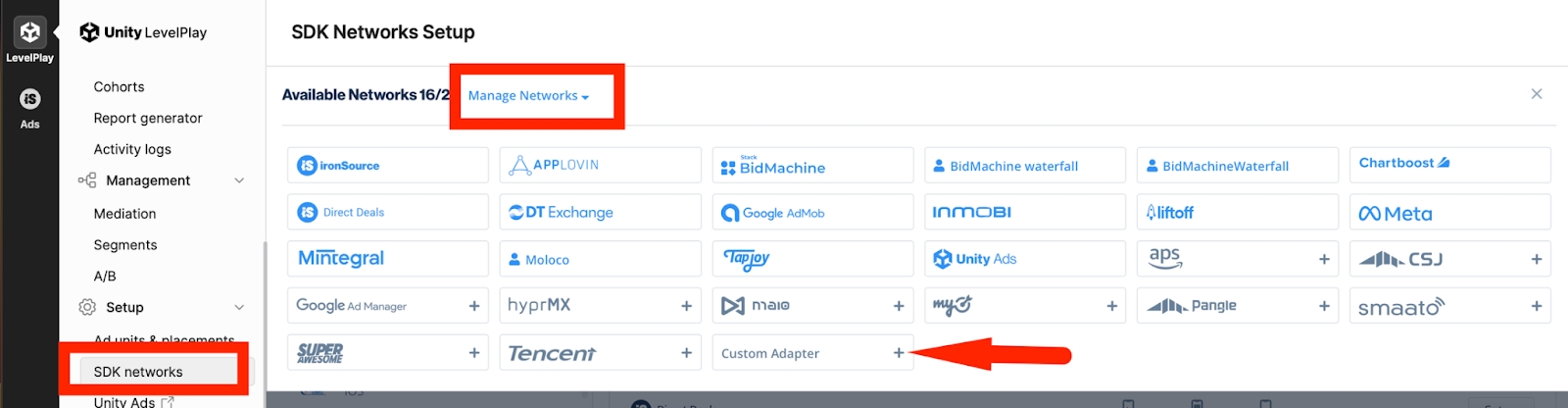
3. To enable the **TapMind Adapter**, input **Network Key** `15c101ba1`, then click on the Enter key, and save. The name of the network should appear as **TapMind**.
4. Click save, your TapMind network is now ready.
**Login LevelPlay → Monetize → Setup → SDK Networks → Available Networks → Manage Networks → Select Custom Adapter → Enter Network Key → Press Enter → Save → TapMind Network Created**
It is highly recommended to enter the Rate (that has been provided by TapMind for each placement id), as this determines the correct order in the waterfalls. Repeat the above setup for each ad-format type. To start with, only add one instance for each format only, and use the discussed eCPM rate for waterfall.
##### Setup Instances
1. In the Left Side Navigation Menu click Instances under Setup.
2. Click TapMind Network listed under Custom.
3. Click on Ad Instance and select Ad type as Per the G-sheet Provided.
For the Below details Please reach out TapMind Account Manger
```
Instance Name : As Per the G-sheet Provided
ecpm : As Per the G-sheet Provided
```
**Setup → Instances → Select TapMind (Custom) → Add Ad Instance → Select Ad Type (from sheet) → Enter Instance Name (from sheet) → Select Mediation Groups → Enter Rate (from sheet)**
#### **Testing instructions**
Before deploying the TapMind SDK and adapter to your live application, you can perform testing with the test mode. This will guarantee a high fill rate (99.99%) during the integration testing process, ensuring that the implementation is functioning correctly. It is crucial to disable the test mode before going live, as failing to do so will result in financial loss.